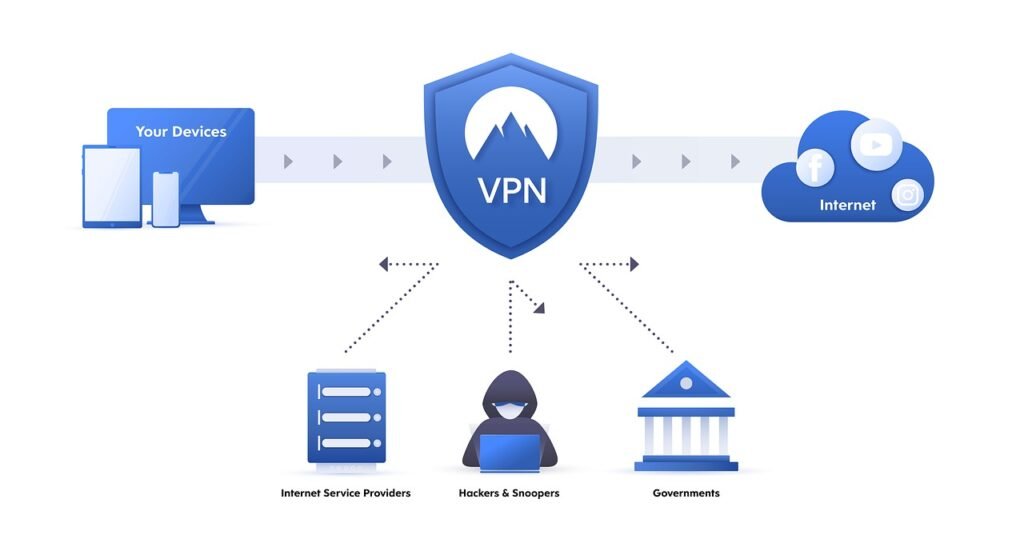
If you are new to VPNs, setting one up on your PC can feel confusing. Many Windows users want better privacy but are not sure which settings matter, which features are optional, or how to avoid weakening protection by mistake. This guide explains a practical Proton VPN setup Windows users can follow step by step, with a clear focus on privacy.
By the end, you will know how to install Proton VPN on Windows, choose the most useful privacy settings, and build safer habits for everyday browsing, public Wi-Fi, and more sensitive online activity.
Key Takeaways
- Download the official Proton VPN Windows app and keep it updated.
- Enable the kill switch and auto-connect for more consistent privacy.
- Use Proton’s recommended protocol unless you have a specific reason to change it.
- Choose standard servers for daily use and Secure Core when you need extra protection.
- Remember that VPN privacy also depends on Windows updates, account security, and safe browsing habits.
Why Proton VPN is a good choice for Windows privacy
Proton VPN is a strong option for beginners because its Windows app is easy to use and includes privacy-focused features without requiring advanced networking knowledge. It is also backed by a company known for privacy tools, which matters when you are trusting a provider with your internet traffic.
Still, no VPN makes you anonymous on its own. A VPN can protect your connection from local network snooping, reduce tracking tied to your IP address, and improve safety on public Wi-Fi, but it does not replace good browser habits, strong passwords, or system security.
If you want more background, the U.S. Federal Trade Commission explains how VPNs help protect privacy in plain language.
What you need before starting Proton VPN setup Windows
Create your account and choose a plan
Before installing the app, create a Proton account and decide whether the free or paid plan fits your needs. For maximum privacy and flexibility, a paid plan is usually the better choice because it gives you more server options and access to advanced features such as Secure Core.
If you mainly want occasional protection on public Wi-Fi, the free plan may be enough to start. If you want more control, broader server choice, and a smoother daily experience, a paid plan is easier to recommend.
Update Windows first
Make sure your Windows PC is fully updated before installing Proton VPN. A VPN protects traffic in transit, but it cannot fix security problems caused by an outdated operating system.
Microsoft provides guidance on keeping Windows updated and supported. This is one of the simplest ways to improve privacy and security before you even connect to a VPN.
Quick tip: Download Proton VPN only from the official Proton website or other trusted app sources. Avoid third-party download sites, which may offer outdated installers or bundle unwanted software.
How to install Proton VPN on Windows
Download the official Windows app
Go to Proton VPN’s official website and download the Windows app. Using the official version helps ensure you get the latest security fixes, protocol support, and privacy features.
Once the file is downloaded, run the installer and follow the setup prompts.
Sign in and allow permissions
After installation, open the app and sign in with your Proton account. Windows may ask for network-related permissions so the VPN can create a secure tunnel. That is normal.
When you reach the main dashboard, you can connect right away. However, it is better to review the privacy settings first so your setup matches how you plan to use the VPN.
Best Proton VPN setup Windows settings for privacy
Enable the kill switch
The kill switch is one of the most important settings to check. It helps block internet traffic if the VPN connection drops unexpectedly, reducing the chance that your real IP address is exposed.
If privacy matters to you, this setting should usually stay on. It is especially useful on unstable Wi-Fi or when your laptop switches between networks.
Turn on auto-connect
Auto-connect helps protect you as soon as your device goes online. This is useful if you often forget to launch the VPN manually or regularly use your laptop in cafes, airports, hotels, or coworking spaces.
For beginners, it is one of the easiest ways to make privacy more consistent without adding extra steps.
Use the recommended protocol
Proton VPN may offer several protocol options in the Windows app. In general, modern protocols are preferred because they offer a better balance of security, stability, and speed than older ones.
If you are unsure, leave the app on Proton’s recommended setting. For most users, that is the safest and simplest choice.
Enable NetShield and DNS leak protection when available
If your plan includes privacy extras such as NetShield, enable them if they fit your needs. Features that block ads, trackers, and malware domains can reduce unnecessary connections that may affect privacy.
Also make sure DNS leak protection is active through the app’s default behavior or settings. This helps keep your browsing requests inside the VPN tunnel instead of exposing them to your internet provider.
Secure Core vs standard servers
Not every privacy feature is necessary all the time. Proton VPN offers different routing options, and the right choice depends on whether you value speed or extra protection more in that moment.
| Option | Best for | Main advantage | Main trade-off |
|---|---|---|---|
| Standard servers | Everyday browsing, streaming, general use | Better speed and lower latency | Less layered protection than Secure Core |
| Secure Core | Higher-risk situations, sensitive browsing, restrictive networks | Extra privacy through hardened routing | Can be slower |
When to use standard servers
For normal daily use, standard servers are usually the best choice. They are faster, simpler, and good enough for common privacy needs such as protecting traffic on public Wi-Fi or reducing IP-based tracking.
When to use Secure Core
Use Secure Core when privacy matters more than speed. If you are on a risky network, handling sensitive work, or want an extra layer of protection, the slower performance may be worth it.
Quick tip: If browsing feels slow with Secure Core enabled, switch back to a standard server for routine tasks and save Secure Core for higher-risk situations.
How to connect safely for everyday use
Choose a nearby server for better speed
If privacy is your goal, it can be tempting to overthink server choice. In many cases, a nearby server in a privacy-friendly location is the best option for stable performance.
Speed matters because a slow VPN is more likely to be turned off. A privacy tool only helps if you keep using it.
Be careful on public and shared networks
Even at home, a VPN can add a layer of privacy from your local network or internet provider. On public Wi-Fi, it becomes even more useful.
Still, avoid logging into sensitive accounts on suspicious captive portals or poorly secured networks if you can wait until you are on a safer connection.
Confirm the VPN is connected before sensitive activity
Before online banking, account changes, or private communication, take a quick look at the Proton VPN app and confirm the connection is active. It only takes a second and helps prevent accidental exposure.
Common mistakes that reduce VPN privacy on Windows
Ignoring important settings
Some users install the app, connect once, and never review the settings again. If the kill switch, auto-connect, or privacy extras are off, your protection may be less consistent than you expect.
Using too many privacy tools at once
Stacking a VPN with random browser extensions, unknown antivirus tools, or unofficial DNS apps can create conflicts or leaks. Keep your setup simple and intentional.
Forgetting that browser behavior still matters
A VPN does not stop you from signing into accounts that identify you, accepting invasive cookies, or installing risky extensions. Your browser and account choices still play a major role in privacy.
Overlooking Windows account security
If your Windows login is weak or your device is shared carelessly, a VPN cannot solve that. Use a strong password, enable device encryption if available, and lock your screen when you step away.
Troubleshooting Proton VPN setup Windows issues
If the app will not connect
Start by switching servers. If that does not help, try a different protocol setting if the app allows it. Restarting the app or rebooting Windows can also fix temporary network conflicts.
If you are on a restrictive network such as school, office, or hotel Wi-Fi, some VPN traffic may be limited. Testing another network can help confirm whether the problem is local.
If your internet stops when the VPN disconnects
This may happen because the kill switch is doing its job. Reconnect to the VPN, or temporarily disable the kill switch if you need normal internet access while troubleshooting.
If speeds feel too slow
Choose a server closer to your location, avoid Secure Core for routine browsing, and close apps that use a lot of bandwidth in the background. In many cases, speed problems are solved by changing servers rather than turning the VPN off completely.
Final thoughts
A privacy-first Proton VPN setup on Windows does not need to be complicated. Install the official app, enable the kill switch and auto-connect, use the recommended protocol, and save Secure Core for times when you need extra protection.
The biggest privacy gains come from combining the VPN with smart habits. Keep Windows updated, secure your accounts, and pay attention to what your browser and apps are doing. Used that way, Proton VPN can be a practical part of your everyday privacy routine.