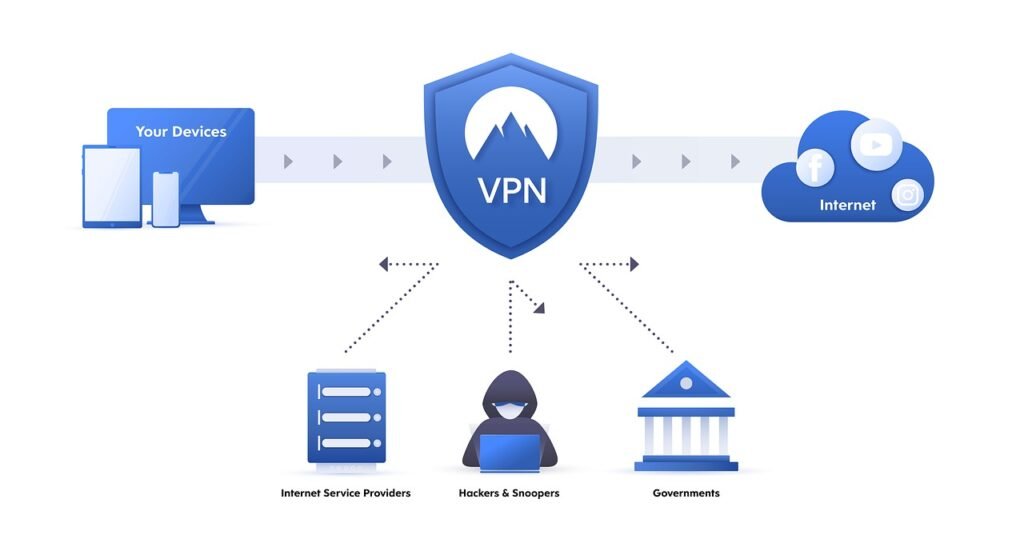
Installing Proton VPN on a compatible router can route internet traffic from connected devices through one VPN connection, which is especially useful for devices such as smart TVs and game consoles that may not run a VPN app. It does not replace Wi-Fi security or encrypt local connections between a device and the router. The safest setup path is to use Proton VPN’s current router instructions for your exact firmware and either OpenVPN or WireGuard, whichever the router supports.
—
Why Install Proton VPN on Your Router?
A router-level VPN can be useful when you want one configuration to cover internet traffic from multiple connected devices:
– One router connection: Devices using that router can send their internet traffic through the VPN without each device running a separate Proton VPN app.
– Available on every Proton VPN plan: Proton currently supports router connections on all plans, including Proton Free. On the Free plan, the router counts as one connection even when several devices use it.
– Useful for devices without VPN apps: Smart TVs, game consoles, and other devices can use the router’s VPN connection.
– Always-on routing: Once the router profile is connected, covered devices use that route until you disconnect it or change the router configuration.
There are important limits. Proton states that the router must support OpenVPN or WireGuard as a VPN client, and many ISP-supplied routers do not. A router VPN encrypts traffic between the router and the internet, not local traffic between your device and the router. Some app features can also be unavailable in a router setup.
—
Preparation: What You Need
Before changing router settings, confirm these four things:
1. A compatible router and current firmware
Check that your exact model can act as an OpenVPN or WireGuard client. Proton maintains current setup guides for platforms including AsusWRT, AsusWRT-Merlin, DD-WRT, FreshTomato, OpenWrt, pfSense, OPNsense, MikroTik, and others. Support varies by model and firmware version.
2. A Proton VPN account
Router connections are currently available on all Proton VPN plans, including Proton Free. Paid features such as streaming support or some NetShield options remain plan-dependent.
3. Access to your router’s admin interface
Use the address and administrator credentials supplied by the router manufacturer or your own configuration. Do not assume that every router uses the same local IP address or menu path.
4. A safe firmware plan
If your current firmware cannot act as a VPN client, do not flash replacement firmware casually. Proton warns that installing new router software can be difficult and, if done incorrectly, can leave the router unusable. Back up the router configuration and follow the firmware vendor’s exact instructions.
—
Step 1: Choose OpenVPN or WireGuard and Download the Router Configuration
Sign in at account.protonvpn.com and open Downloads. Then use the protocol supported by your router:
– OpenVPN: Download an OpenVPN configuration file and select Router as the platform. OpenVPN setups use a separate OpenVPN username and password, not your normal Proton Account sign-in credentials.
– WireGuard: On supported routers, download a WireGuard configuration and select Router. Proton has current WireGuard guides for platforms including OpenWrt, pfSense, MikroTik, and newer AsusWRT/AsusWRT-Merlin models.
Where both protocols are supported, follow Proton’s current guide for that firmware rather than copying settings from a different router. For example, Proton recommends WireGuard on OpenWrt unless you have a specific reason to use OpenVPN, while older AsusWRT models may only support OpenVPN.
—
Step 2: Open the Router’s VPN Client Settings
Connect to the router’s local admin interface and sign in. Find the VPN client area for your firmware. The menu path varies by model: current AsusWRT RT-AXxxx firmware, for example, uses VPN Fusion, while DD-WRT and OpenWrt have different interfaces. Use Proton’s guide for the exact firmware version you are running.
Before importing a profile, save or export the router’s current configuration if the firmware provides that option. This gives you a cleaner recovery path if the VPN setup changes DNS, firewall, or routing behavior.
—
Step 3: Import the Proton VPN Profile
OpenVPN setups
Import the downloaded .ovpn profile using your router’s OpenVPN client controls. If the router asks for credentials, use the dedicated OpenVPN username and password shown in your Proton Account. Proton’s current AsusWRT guide, for example, imports the profile through the router’s VPN client/VPN Fusion interface; current DD-WRT builds also support importing the Proton OpenVPN configuration.
WireGuard setups
Import the WireGuard configuration using the router’s WireGuard client controls. On supported AsusWRT RT-AXxxx models, Proton’s current instructions use VPN → VPN Fusion → Add profile, select WireGuard, and import the downloaded configuration. OpenWrt uses a WireGuard interface plus firmware-specific firewall and DNS settings.
Do not manually copy ports, ciphers, DNS values, or certificate fields from an old tutorial when your router can import Proton’s current configuration. Those details can differ by protocol and firmware, so the current Proton guide and the downloaded profile should be the source of truth.
—
Step 4: Test the VPN Connection
After the router reports that the VPN profile is connected, test it from a device that is using that router:
1. Open Proton’s secure IP checker and confirm that your public IP is different from the one assigned by your ISP and matches the VPN location you selected.
2. If your firmware-specific Proton guide includes a DNS-leak test, run that as well. Proton’s current OpenWrt OpenVPN instructions, for example, explicitly include DNS configuration and leak testing.
3. Confirm that ordinary browsing still works and that the devices you intend to cover are actually routed through the VPN profile.
An IP-address check confirms the public route; it does not by itself prove that optional features such as Secure Core, NetShield, or split tunneling are active. Router support for app features varies, so verify those features against Proton’s current documentation and your chosen profile.
—
Troubleshooting Installation Issues
VPN does not connect: Confirm that the router supports the protocol you selected, re-download the correct Router configuration, and, for OpenVPN, verify that you are using the separate OpenVPN credentials from your Proton Account.
The router connects but speeds are poor: Router CPU performance can limit encrypted throughput. Try a suitable nearby server and compare results before changing security settings. For a broader diagnostic checklist, see Wordtheque’s Proton VPN speed troubleshooting guide.
Your router has no VPN client option: Check the exact model and firmware against Proton’s supported-router guides. Most ISP-supplied routers do not support VPN client configurations. Flashing third-party firmware is an advanced option and can make a router unusable if done incorrectly.
A feature from the Proton VPN app is missing: Router connections do not necessarily expose every app feature. Proton specifically notes that features such as NetShield or split tunneling may be unavailable depending on the router setup and plan.
—
Security Tips for a Router VPN
A VPN on the router is only one part of home-network security:
– Keep the router firmware current: Proton notes that outdated firmware can cause security and compatibility problems.
– Protect the local network: Use a strong Wi-Fi password and check for unknown devices. The VPN tunnel does not encrypt the connection between your devices and the router.
– Use a strong router-admin password: Do not leave the manufacturer’s default administrator credentials in place.
– Know the scope: Local connections such as Bluetooth are outside the router VPN tunnel, and changing VPN locations generally requires changing or switching the router profile.
—
The Bottom Line
Proton VPN can be installed on a compatible router on any current Proton VPN plan, including Proton Free. The right setup depends on the router model, firmware, and whether it supports OpenVPN or WireGuard as a client. Use Proton’s current firmware-specific guide, import the configuration generated for the router, and verify the public IP after connecting. This can give connected devices a consistent VPN route to the internet, but it does not make the home network anonymous, replace Wi-Fi security, or guarantee that every Proton VPN app feature is available at the router level.