Installing a VPN on Windows is only the first step. Many people download Proton VPN, sign in, click Connect, and assume they are fully protected. In practice, a few setup choices can make a real difference to privacy, stability, and everyday reliability.
This guide walks through a practical Proton VPN setup on Windows with privacy in mind. You will learn what to check before installation, which settings to enable first, how to choose the right server, and how to confirm the VPN is working properly.
Before You Start Proton VPN Setup on Windows
Check your Windows device
Before installing Proton VPN, make sure your PC is ready:
- Use a supported version of Windows
- Install current Windows updates
- Sign in to an account with administrator access
- Use a stable internet connection during setup
- Close conflicting network tools if needed
Keeping Windows updated helps avoid installation and networking problems.
Review your Proton VPN plan
Proton VPN offers different account tiers. If privacy features are your priority, check what your plan includes before you begin. Some options, such as Secure Core and NetShield, may depend on your account level and app support.
Compare features on the official Proton VPN website so you know which tools are available in your account.
Download only from the official source
For security, download Proton VPN directly from the official website. This helps you avoid outdated installers, modified files, or third-party download sites.
- Go to the official Proton VPN website
- Download the Windows app there
- Avoid unofficial mirrors and software archive sites
- Install updates through the app or official website only
How to Install Proton VPN on Windows
Download the Windows app safely
Open the official Proton VPN site and download the Windows installer. Before running it, confirm the file came from the expected source and that your browser did not flag it as suspicious. If Windows shows a security prompt, review the publisher details before continuing.
Run the installer
Launch the installer and follow the on-screen prompts. Most users can keep the default installation path and standard options. If Windows asks for administrator permission, approve it so the app can install the network components it needs.
After installation, open Proton VPN and let it complete any first-run setup tasks.
Sign in and update the app
Sign in with your Proton account, then check for updates in the app settings or menu. Using the latest version matters because updates often include:
- Security fixes
- Protocol improvements
- Windows networking bug fixes
- Better stability and leak protection
If an update is available, install it before changing privacy settings.
Essential Proton VPN Settings for Windows
Use the recommended protocol first
For most Windows users, the best starting point is Proton VPN’s recommended default protocol. It is usually chosen to balance speed, modern encryption, and connection stability.
If you notice disconnects or compatibility issues, try another supported protocol and compare results. Start with the default, then switch only if you have a clear reason.
Turn on the kill switch
The kill switch is one of the most important privacy settings. It helps block internet traffic if the VPN connection drops unexpectedly, reducing the chance that your real IP address is exposed.
If privacy is your main goal, enable this during setup.
Enable auto-connect on startup
Auto-connect helps protect your traffic as soon as you start using your PC. It is especially useful if you use public Wi-Fi, travel with a laptop, or do not want to remember to connect manually every time.
Choose the startup behavior that fits your routine, such as connecting to the fastest recent server or a preferred country.
Set trusted networks and connection preferences
Decide when Proton VPN should connect automatically. Some users want it active on all networks, while others only want automatic protection on untrusted Wi-Fi.
- Enable automatic protection on public or unknown networks
- Choose whether home or office networks are trusted
- Set a preferred server location if needed
- Keep the behavior consistent so you always know when you are protected
Privacy Features to Enable
NetShield
If your plan includes NetShield, enable it to block known malicious domains and reduce some unwanted connections, such as trackers or ads, depending on the mode you choose. It can improve privacy, but it is not a replacement for good browser privacy settings.
Secure Core
Secure Core adds an extra layer between you and the final VPN exit server. It can be useful in higher-risk situations, but it may reduce speed because your traffic takes a longer route. Use it when privacy matters more than performance.
DNS leak protection
DNS leaks can reveal which websites you visit even when other traffic is routed through the VPN. Proton VPN is designed to route DNS requests securely, but you should still verify your setup after configuration. The Federal Trade Commission’s online privacy guidance is a useful reminder that privacy depends on more than one tool.
Basic account security habits
Your habits still matter, even with a VPN enabled. To reduce unnecessary exposure:
- Use a strong, unique password for your Proton account
- Enable two-factor authentication if available
- Avoid sharing more account details than necessary
- Sign out of apps and sites you do not need
- Review Windows app permissions periodically
How to Choose the Best Server for Privacy
Balance privacy, speed, and reliability
Nearby servers usually perform better because data travels a shorter distance. Lower server load can also improve stability. If a server is heavily loaded, switching to a less busy one may help without changing countries.
Use nearby servers for everyday browsing
For routine private browsing, nearby servers are often the best choice because they usually offer:
- Lower latency
- Better speeds
- More stable connections
- Smoother daily use
If your main goal is to hide your IP while keeping performance practical, start with a nearby server.
Use privacy-focused options when needed
Features such as Secure Core make more sense when your threat model is higher, such as when using risky networks or when you want stronger separation between your device and the final exit point. They are less important for casual browsing.
Avoid unnecessary specialty servers
Not every specialty server improves privacy for every task. If your goal is simple private browsing on Windows, a straightforward setup is often easier to manage and less likely to cause compatibility issues.
Daily Proton VPN Setup Checklist for Windows
Connect before you go online
Make it a habit to connect before opening your browser, email, cloud storage, or other apps that send data online. On public Wi-Fi, connect as soon as you join the network.
Verify your IP address
After connecting, confirm that your visible IP address has changed. You can use a trusted source such as WhatIsMyIPAddress or a similar tool to check that your traffic appears to come from the VPN server rather than your local network.
Test for DNS and WebRTC leaks
Run a DNS leak test and, if relevant to your browser setup, a WebRTC leak check. If your ISP DNS servers or local IP details appear, review your Proton VPN settings, browser configuration, and any conflicting extensions.
Confirm the kill switch works
To test the kill switch, connect to Proton VPN and briefly simulate a connection interruption in a controlled way, such as switching networks. Your traffic should not continue outside the VPN tunnel while the connection is down.
Common Proton VPN Problems on Windows
The app will not install or open
If Proton VPN will not install or launch:
- Restart Windows and try again
- Run the installer as administrator
- Check whether antivirus or firewall software is interfering
- Download a fresh installer from the official website
- Make sure Windows is fully updated
The VPN disconnects often
Frequent disconnects can be caused by unstable Wi-Fi, security software, sleep settings, or protocol issues. Try switching protocols, testing another server, and checking whether your network drops even without the VPN active.
Speeds are slow
If speeds drop after connecting, try a nearby server with lower load. You can also disable extra privacy layers temporarily to compare performance and test on another network if possible. Stronger routing options may reduce speed.
Some websites or apps stop working
Some services are sensitive to VPN traffic. If a site or app fails to load, try changing servers, clearing browser cookies, or disabling browser extensions that alter network behavior. If the issue affects only one service, it may be blocking VPN connections rather than indicating a setup problem.
Best Practices After Setup
Keep Windows and Proton VPN updated
Install Windows security updates and Proton VPN app updates promptly so you benefit from the latest fixes and compatibility improvements.
Use a privacy-conscious browser setup
A VPN protects network traffic, but your browser can still expose a lot through cookies, fingerprinting, saved sessions, and extensions. Use a privacy-focused browser setup with limited extensions, stricter tracking controls, and regular cookie cleanup.
Remember that account sign-ins reduce anonymity
If you sign in to personal accounts, those services can still identify you regardless of your VPN IP address. A VPN improves network privacy, but it does not make logged-in activity anonymous.
Know what a VPN can and cannot do
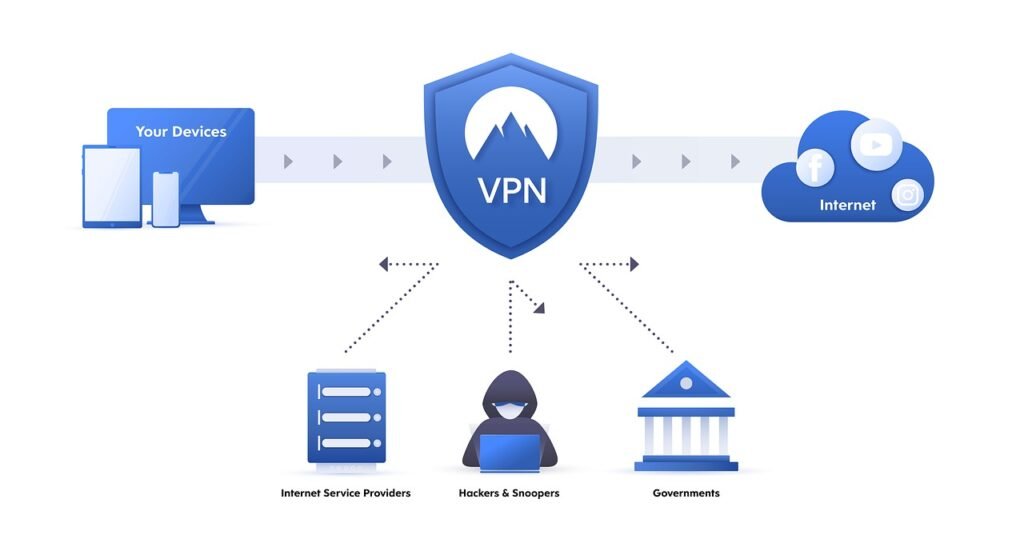
A VPN can help hide your IP address, encrypt traffic between your device and the VPN server, and reduce exposure on untrusted networks. It cannot stop every form of tracking, malware, phishing, or identity disclosure. The CISA Secure Our World guidance is a useful reminder that strong privacy requires layered habits.
Proton VPN Setup Windows FAQ
Is Proton VPN safe for Windows beginners?
Yes. Proton VPN is generally approachable for beginners on Windows, especially if you use the official app, keep it updated, and enable core settings such as the kill switch and auto-connect.
Which Proton VPN protocol should I use on Windows?
Start with the app’s recommended default protocol. If you run into connection or stability issues, test another supported protocol and keep the one that works best on your network.
Does Proton VPN prevent tracking on its own?
No. It can reduce some exposure, and features such as NetShield may block certain trackers, but websites, browsers, cookies, and account logins can still track you in other ways.
Can Proton VPN connect automatically when Windows starts?
Yes. Proton VPN includes startup and auto-connect options, which are useful if you want protection before you begin browsing or when joining public Wi-Fi.
With the right settings, Proton VPN on Windows can be both simple and privacy-focused. The key is to configure it carefully, test for leaks, and build good habits around how you browse every day.